Search Bar

Create bookings
In this section, we will guide you through creating your first booking and exploring and navigating our products.
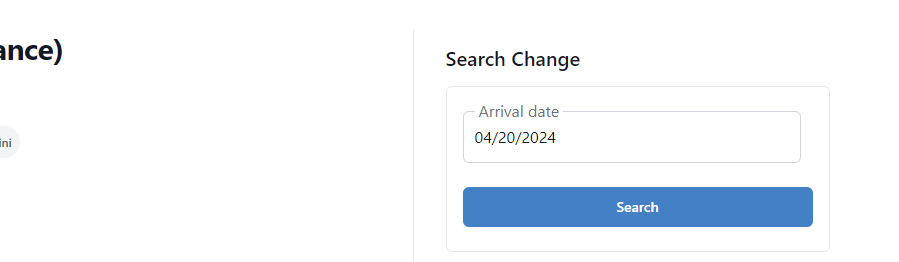
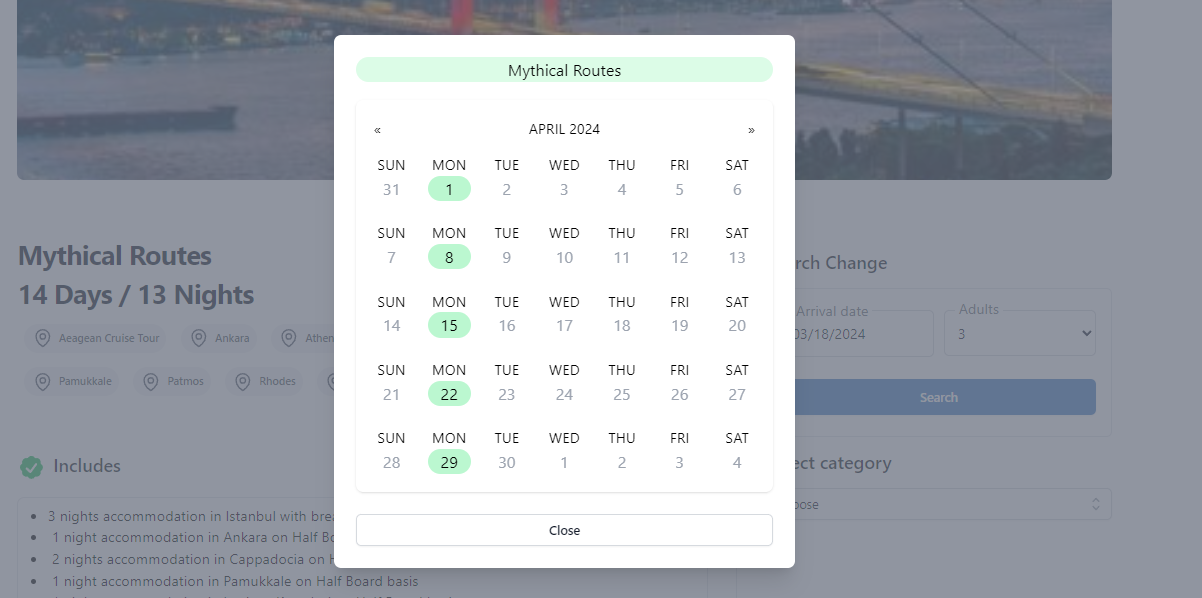
Once you log in with your credentials, you will be redirected to the products page. This is our main display of all our products. You can either search by specific parameters with arrival date or simply explore.
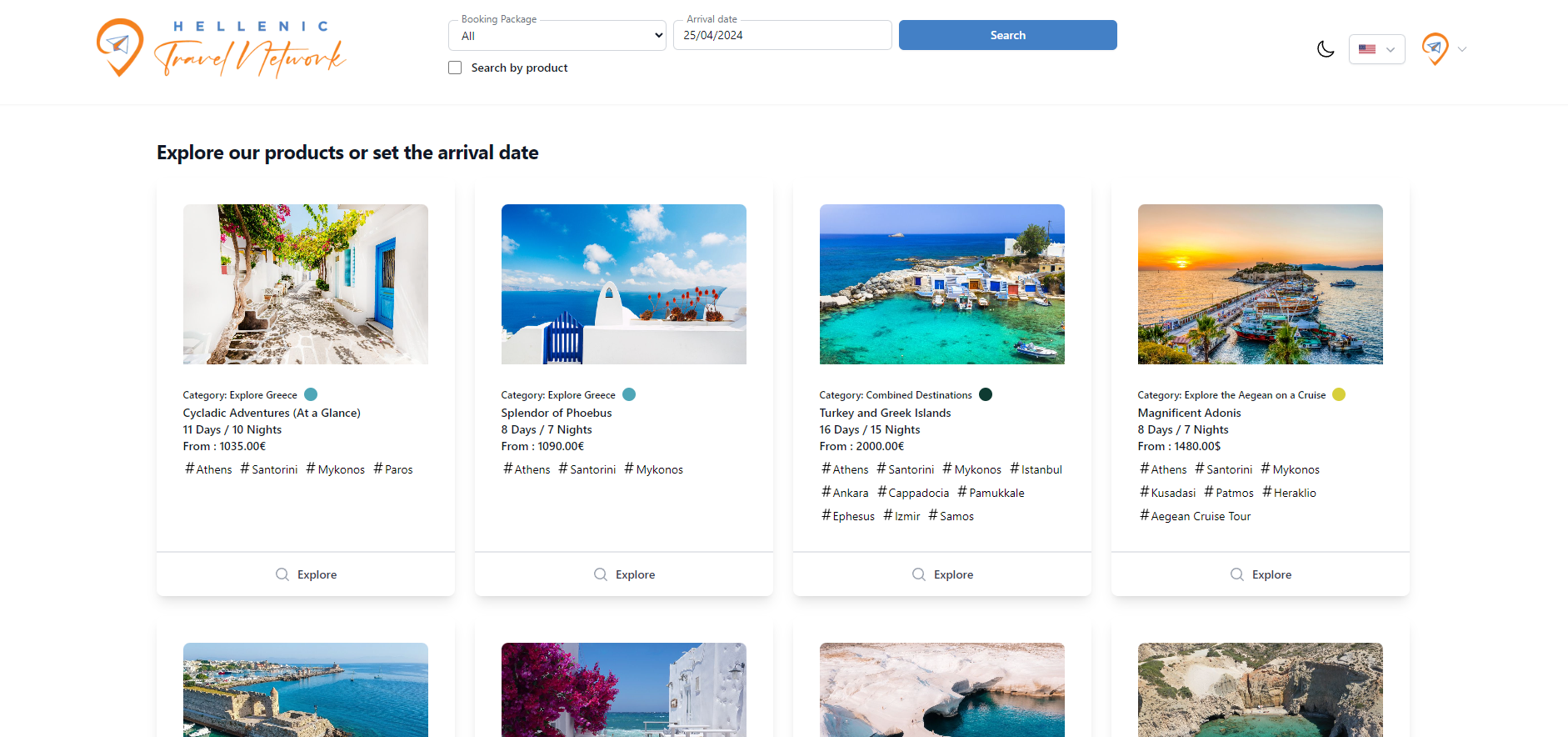


If no available products are found through the search, you will see the 'Explore our Products' title. This functionality displays all of Hellenic Travel Network Products and, if you proceed to book, you will need to set arrival date in the next step
Alternatively, if you find available products, you will see a display similar to the picture below.
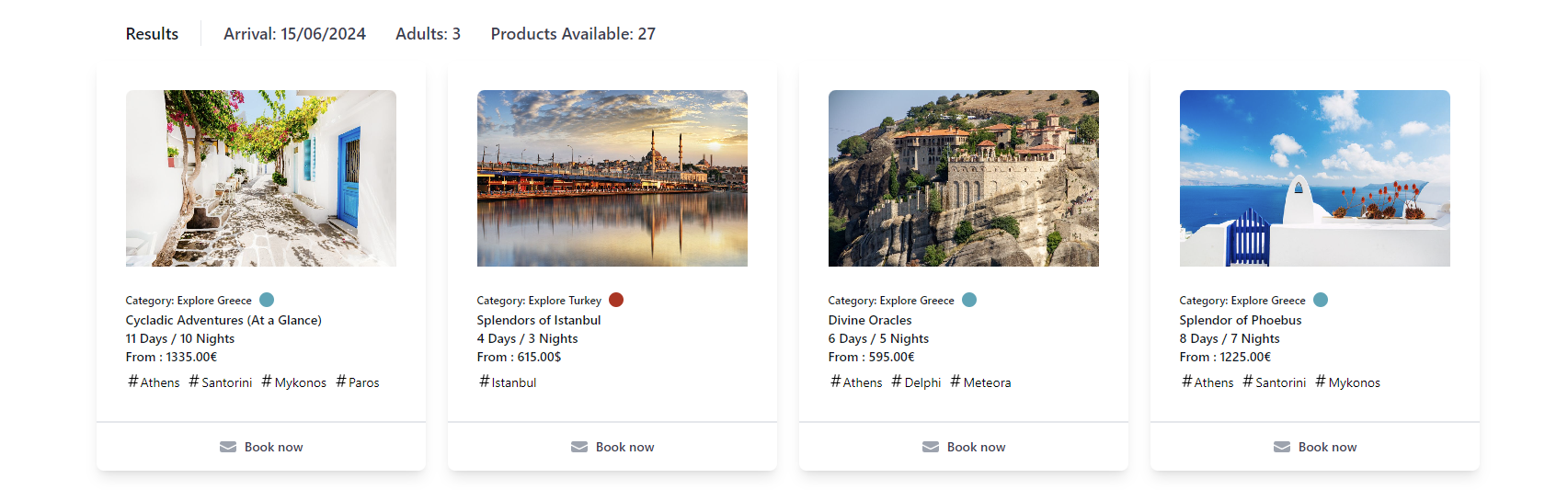
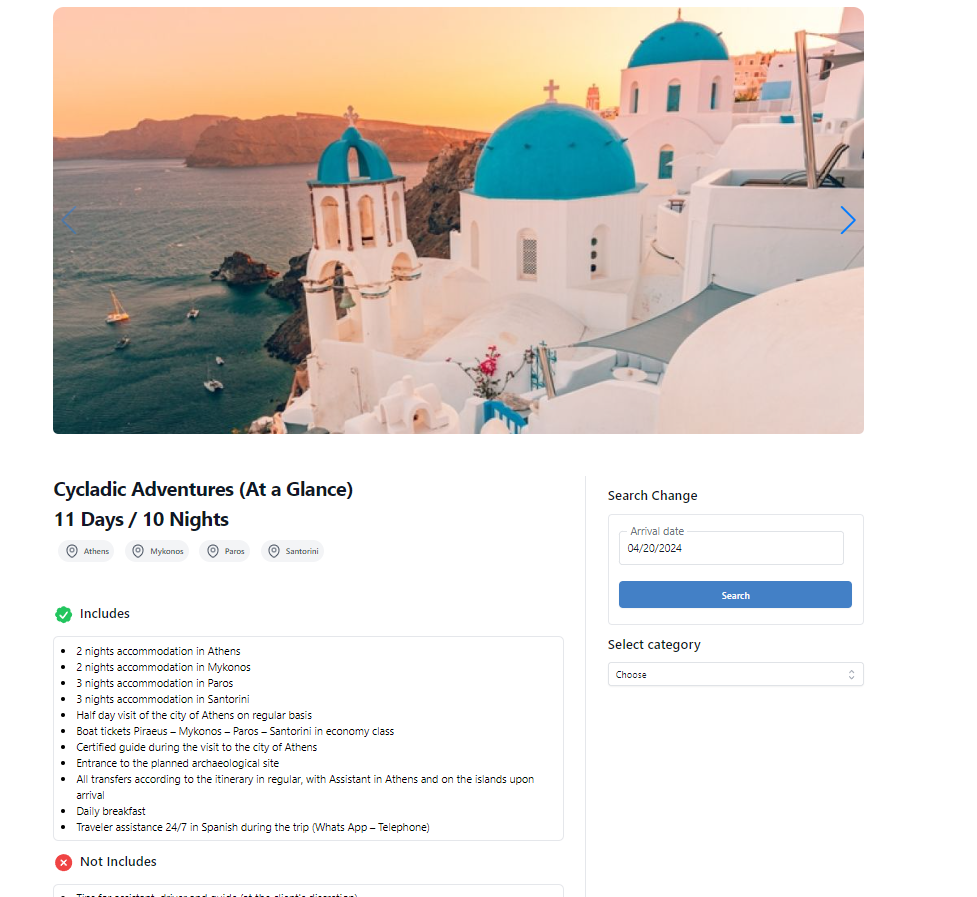
Upon clicking the 'Book Now' button, the system will redirect you to the product profile page. This page contains all the information about the product, including what is included, what is not included, the itinerary, and destinations visited by this product.

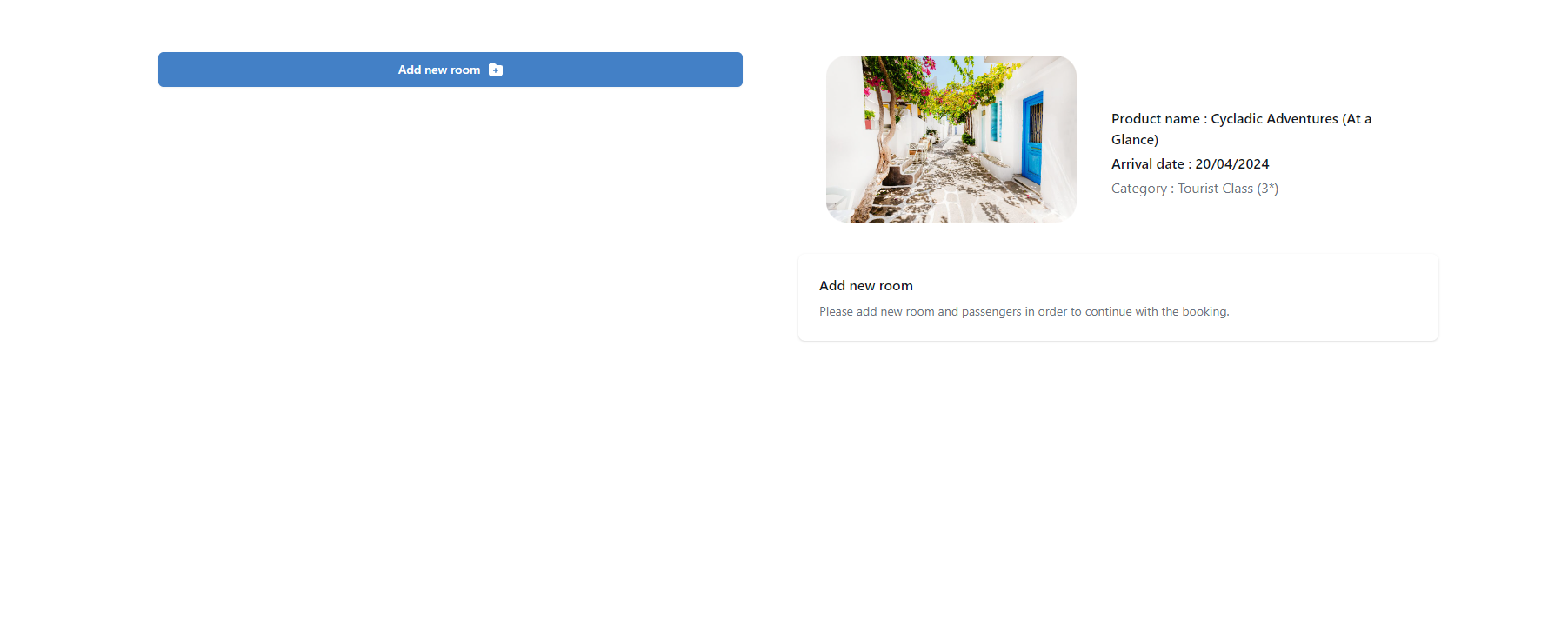
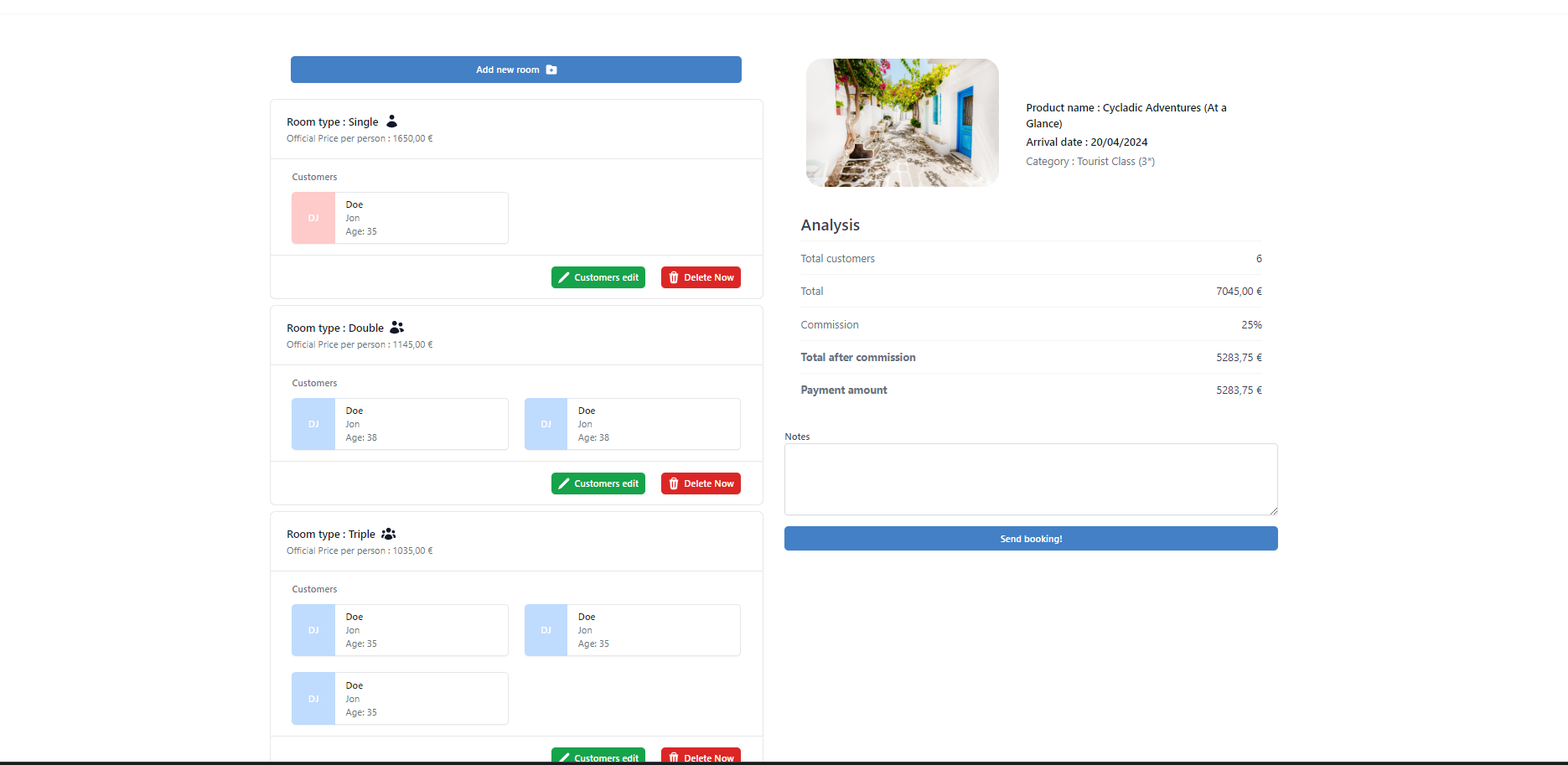
Our system has introduced a new feature called 'Room Addition,' allowing users to create reservations based on rooms. While the system's functionality remains the same, it now accommodates more than three guests in a single reservation. This is particularly useful for travelers traveling together, such as three couples under one reservation. However, it's worth noting that if the third couple prefers a different hotel (which is rare), a separate reservation must be made. Our booking summary management system doesn't support multiple hotels within one booking.
The prices remain unchanged and are consistent with our brochure catalogue, categorized as single, double, and triple occupancy. If a reservation exceeds three guests, the system simply accumulates the prices based on single, double, and triple occupancy rates.
For a clear illustration, refer to the example picture below, demonstrating a group of people traveling together comprising one single, one double, and one triple room. Each room's cost per person is visible, and within the analysis, these prices are aggregated to display the final cost.
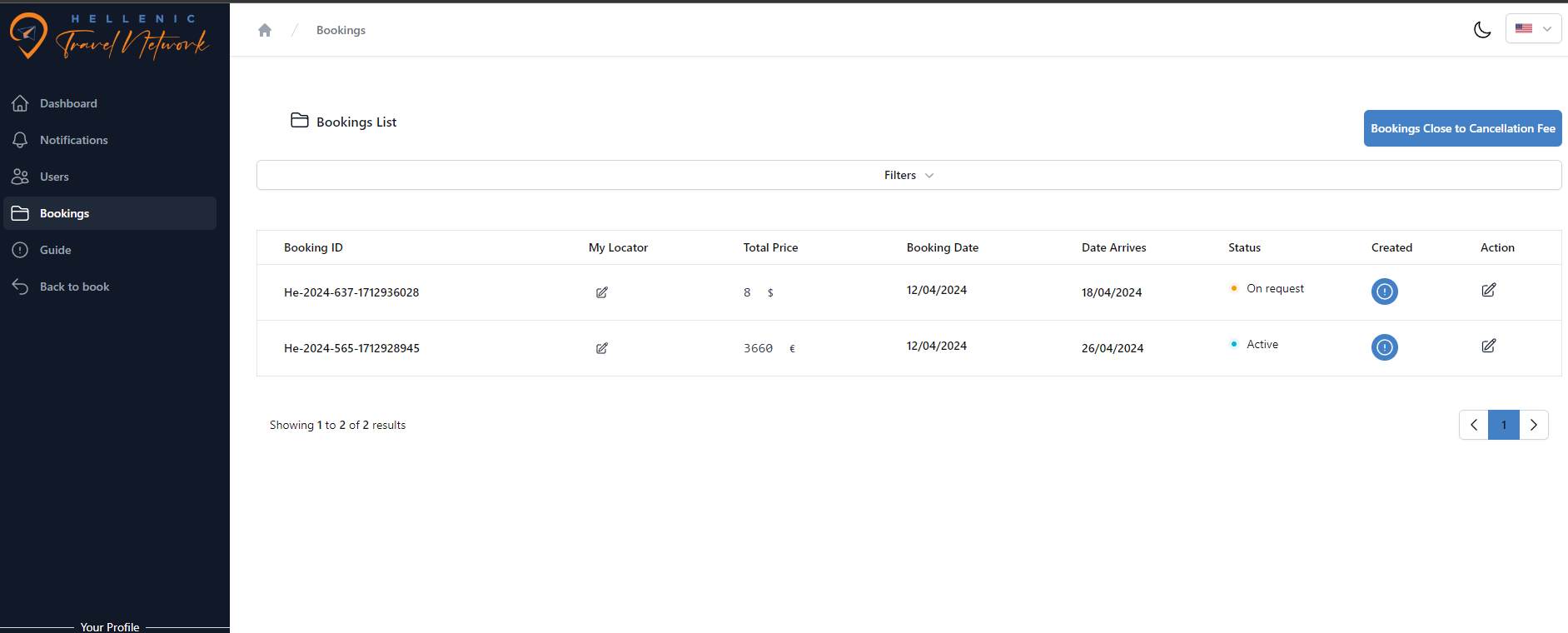
Once you have fill out all your travelers data and rooms press the button 'Send Booking' and you will be redirected to your management system platform.
Congratulations, you have just made your first booking!